TeamSpeak2 Is modern communication program that allows you to talk to others while playing a game.
Of course you do not need to be playing to use it, you can use it as way of just chatting to friends as you can have more than two people on at once, making it ideal for a group to get together.
Our TeamSpeak2 server is not a public server.
The server is provided for the use of Clan members, family and friends only. Clan members are given the details to join the server when they join the Clan.
This so your Nickname can not be used by anyone else on that server and has to be done on every server you join.
The first thing you need is a microphone or a headset with a microphone attached.
You hear the others speaking over your normal speakers or your headset if your using one.
When you talk or use the push to talk button it cuts the output from your speakers so others can hear what you are saying.
Be aware though? That while you are speaking you cannot hear anyone else who is speaking at the same time.
The software you require for this is TeamSpeak2, this can be downloaded from teamspeak.com or from our add-on's page.
There is now an updated TeamSpeak2 Client Executable v2.0.33.7, this also can be downloaded from teamspeak.com or from our add-on's page. To install this update just download it and save over the top of the file in the install directory.
Once this is installed you need to make sure that your firewall knows about it or you are aware that your firewall needs to let TeamSpeak2 access the internet and that you have a microphone ready plugged in and set to be used correctly.
When you first run TeamSpeak2 program opens its main window,
Main window view
To use TeamSpeak2 select a item from the menu
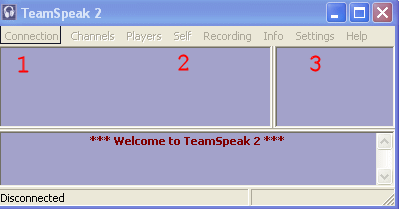
(1) To connect to server.
(2) For doing things to yourself once your registered.
(3) Settings to get the best out of TeamSpeak2.
Before you connect to a server you need to set the settings.
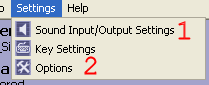
(1) Sounds setting menu.
(2) Hardware Options menu.
The Sound Settings Menu
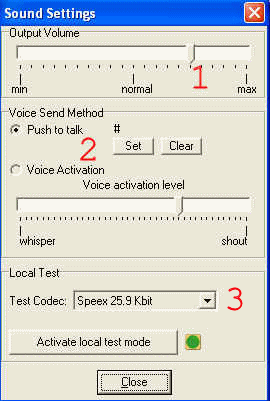 (1) This is where you set the output volume of TeamSpeak2.
The centre position is normal. which is the same volume output as you normally hear other things.
You need to set it slightly higher but you will have to test this to find the best volume for yourself as everyone's hearing is different.
You need to have it so you can hear what is going on in your game and what is being said over the top of it on TeamSpeak2.
(2) This where you select whether to have voice activated or a push to talk button.
If you choose a push to talk button, you need a button not used in game. I use #
Voice activation has its advantages, you do not need to stop what you are doing,
as soon as you speak it goes out to everyone.
it is to late as it has been heard by everyone else!
(3) This for testing your microphone is working correctly.
Select the fastest codec for this and push the "Activate local test mode" button
Speak clearly in to the microphone and if you hear yourself all is well and working.
If not, there is something wrong with your hardware.
Check your connections.
Hardware Options Menu
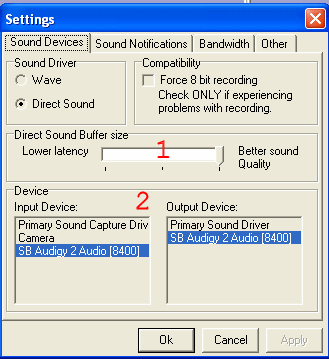
This the main hardware settings menu
(1) Set this depending on your internet connection.
Better quality sound uses more bandwidth use this if you
have a fast broadband connection.
(2)Set this to the device's you use.
This one is set to my sound card.
Once all the settings have been sorted you are ready to connect to the TeamSpeak2 server.
To connect to a TeamSpeak2 server.
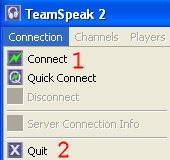 From the menu select
(1) connect to open the connections window which lists your servers
or
(2) Quit to quit the program.
The connection window.
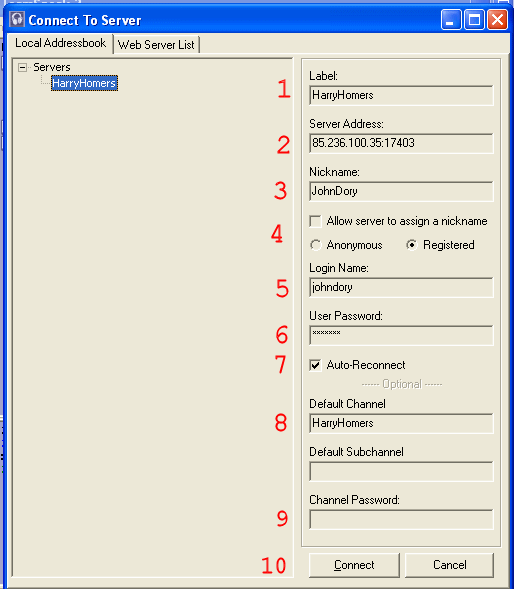
Enter the following details
(1) A name for the connection you want to make.
(2) IP address and port number of the server you want to join.
(3) Nick name you want to use.
(4) When first joining the server you must have anonymous ticked.
Once you have joined and been allowed to register by a Server Admin,
Registered should then be ticked and your log-in and password entered.
(5) The log in name you selected to register with.
(6) The password you selected to register with.
(7) once registered it allows you to automatically
reconnect to the selected server if you get disconnected.
(8) The channel on the server you want to join on connection.
(9) Is where you enter the password once the server is passworded.
(10) Push the connect button to join the server required.
You should now be connected to the server.
The Connected Window.
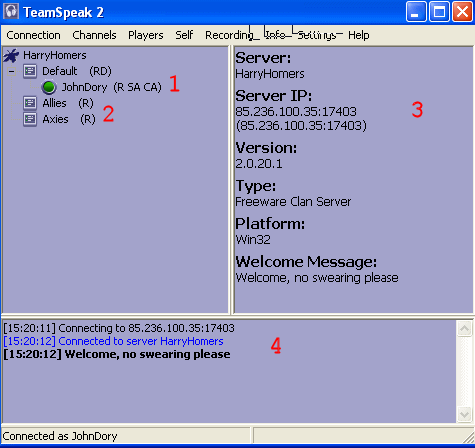
(1) This show's yours and others nickname and what everyone is is on the server.
The letters after some ones nickname are different depending on what they are to the server.
JohnDory = my nickname
U = Unregistered.
R = Registered with the server.
SA = Server Admin.
CH = Channel Admin.
(2) Channels on the server.
You can only talk to people in the channel you are in.
You join or move channels by "drag and dropping" your nickname
in the channel you want to be in.
Channel Admin's and Server Admin's can do this to anyone.
(3) Server information window.
(4) Message window.
Once you have joined the channel you have to register with the server.
A Server Admin has to approve you registering.
The Self Menu.
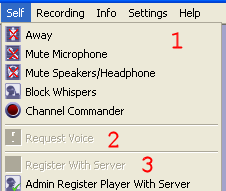
(1) Change any of the settings here you require.
The most used is "away"
(2) If you are on a controlled channel
you need to ask to speak on the channel.
(3) Push this to register once you have been approved.
Enter your nickname, log-in name and password.
There is only a couple of thing's which should be considered.
Once you have registered with a server you can alter your log-in details.
The settings only need to be set-up once.
Channels as well as Servers can be passworded.
Swearing should be avoided at all times as children my be listening.
Remember not everyone may be using headphones, so anyone can be listening.


